To change your WiFi first you need to go into the Residential Gateway Configuration
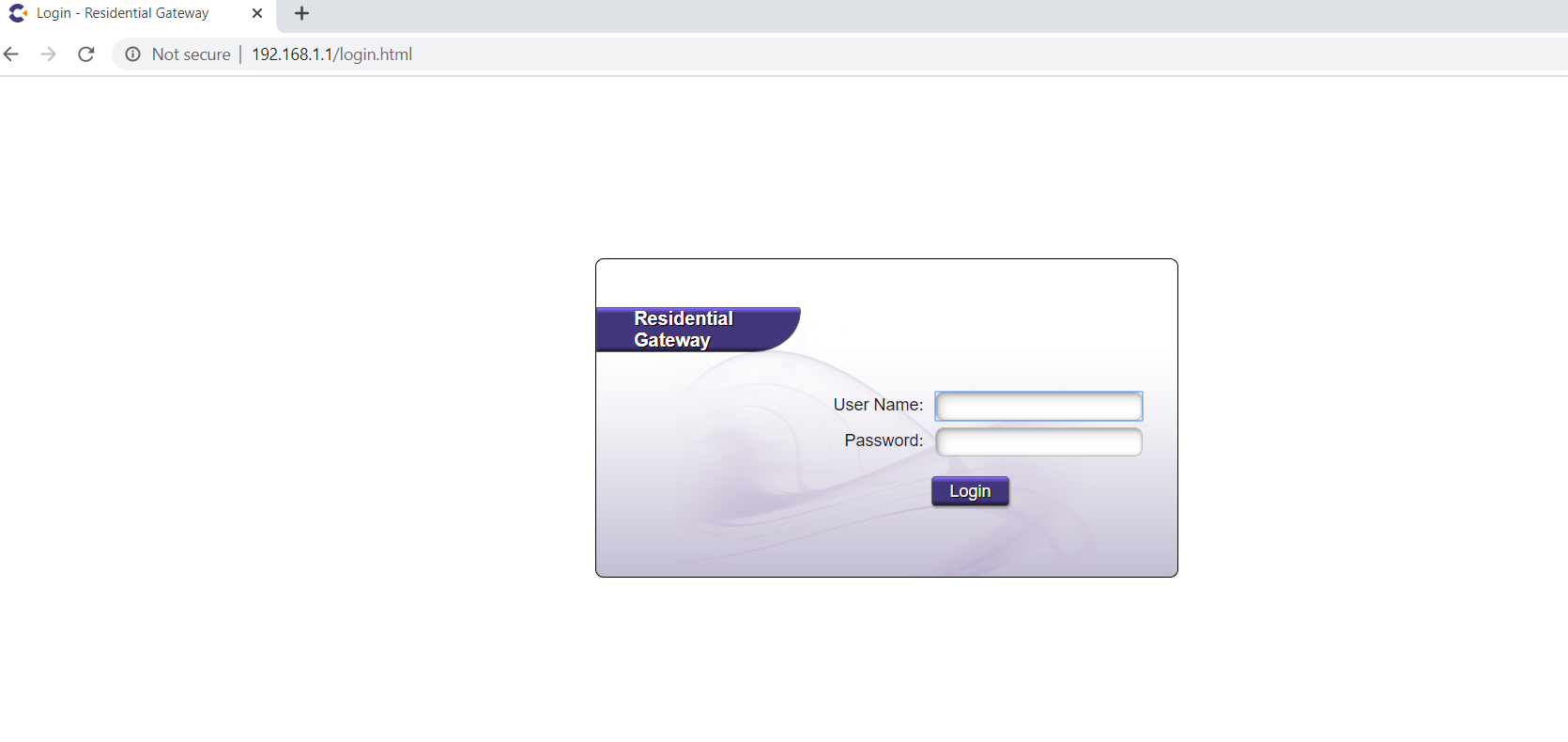
- First, make note if you are connected to your 2.4G or 5G network. If you are hardwired, this will not matter. Then, type into your browser 192.168.1.1 this will take you to the Residential Gateway where you will need to log in
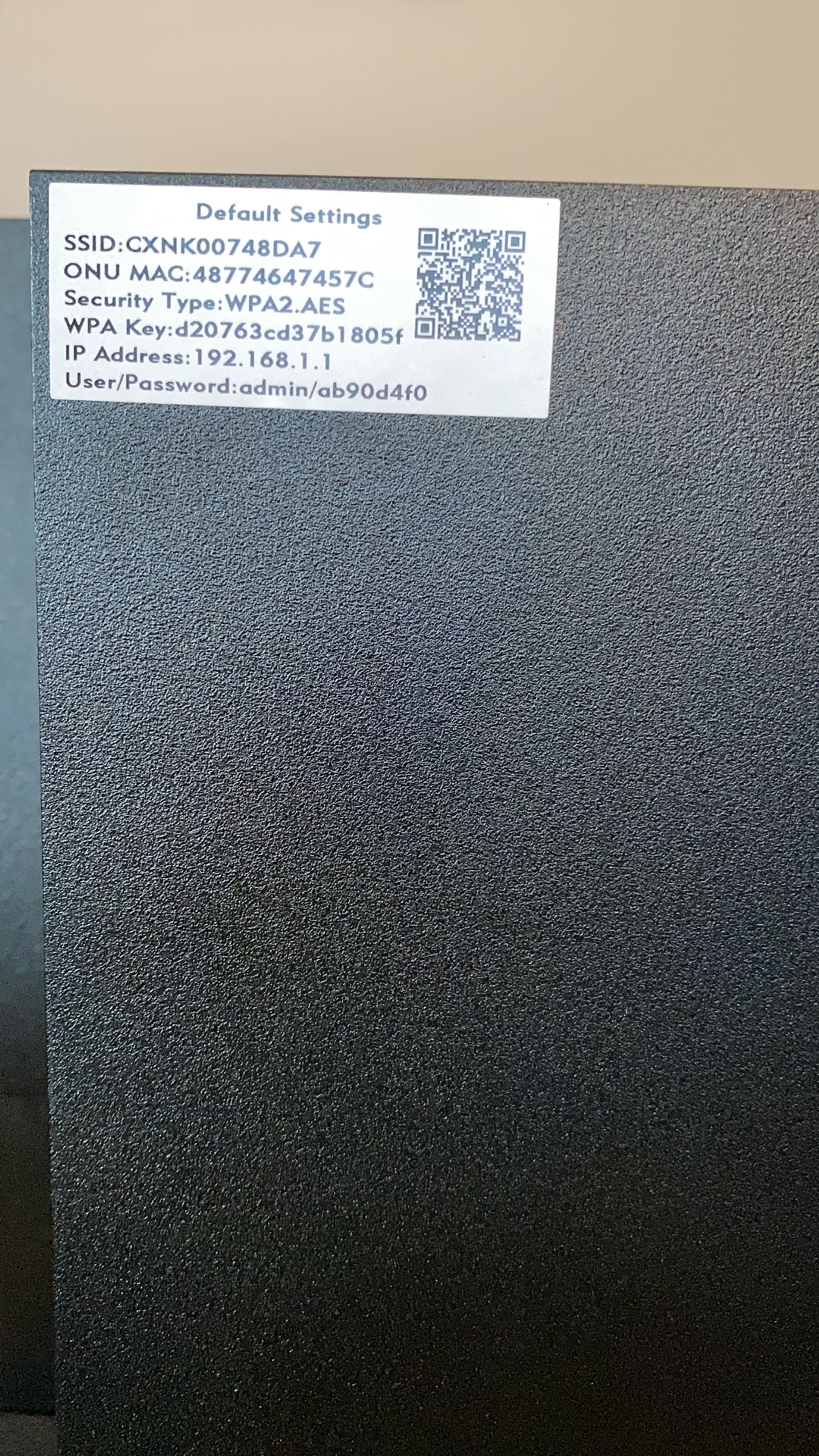
- On the sticker that is located on your Gigacenter you will find User/Password, this will be the information that will be used to log in.
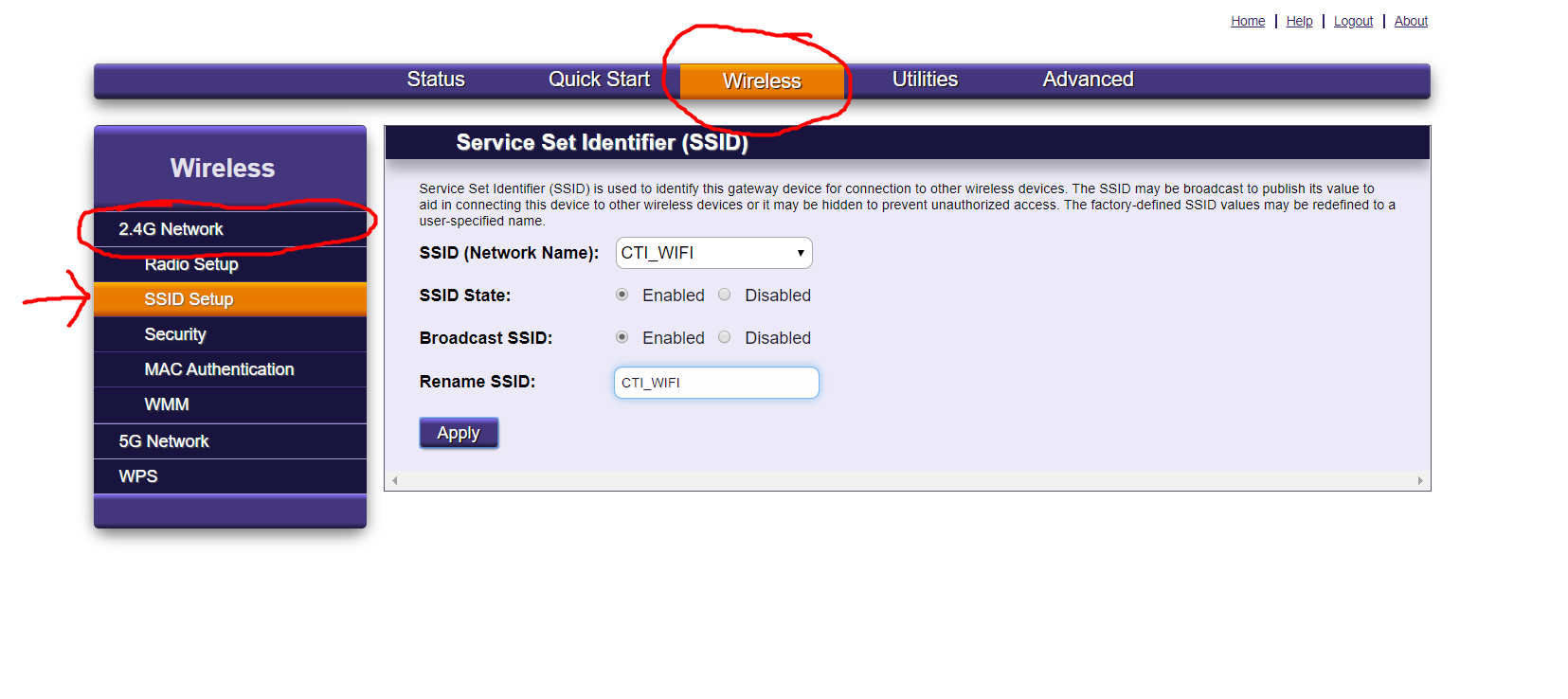
- Once logged in go to the Wireless tab and find your 2.4G and 5G Network tabs. Once here go to SSID SETUP, go to the Rename SSID tab and pick your new WiFi name and then click apply. When renaming WiFi's if you are going to use the same name for both of them be sure to make the names either have 2.4G and 5G attached or a special character e.g. Cti_wifi (for the 2.4G) CTI-WIFI (for the 5G). If you keep these networks the same a device will connect to a network that might not be the 5G network we recommend most devices to be on. You will want to change the network you are not connected to first. Once it has been changed, connect to that one, and then you can change the other. For example, if you are connected to the 5G, change the 2.4G first. Then, connect to the 2.4G to change the 5G. This will ensure the device you are using will not be disconnected while making changes to your router.
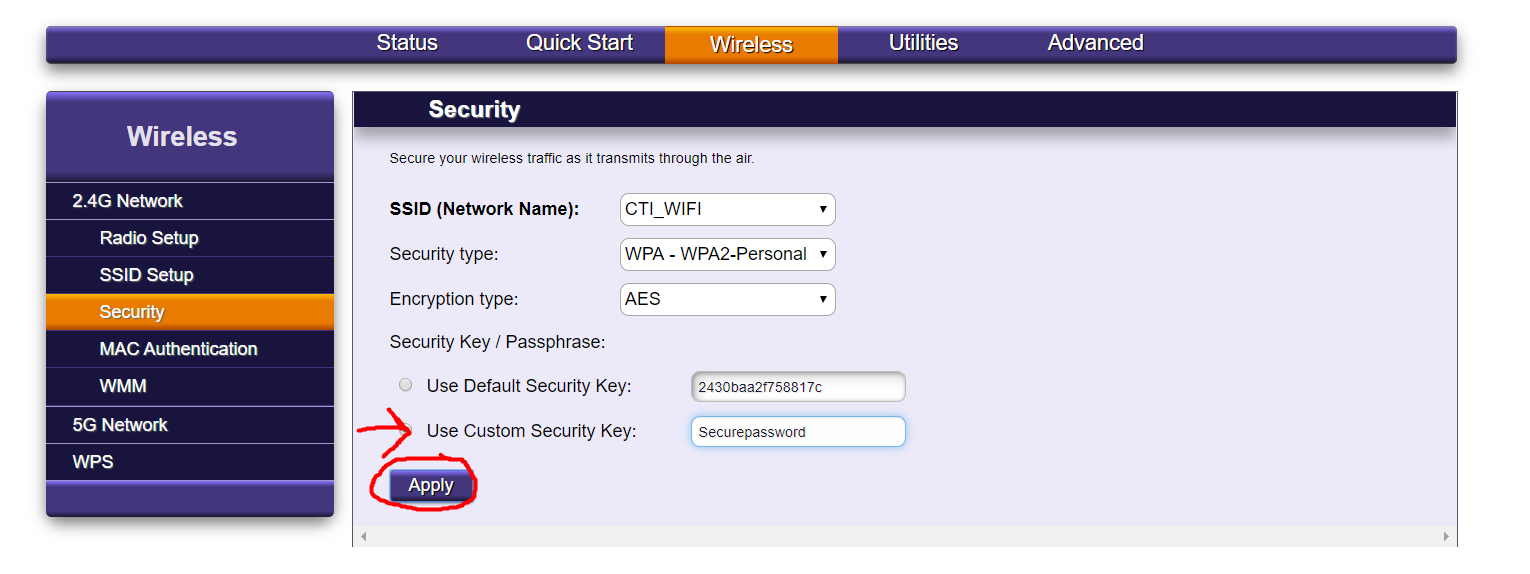
- After you've set up the new name if you are wanting to change the password, go under the security tab and select USE CUSTOM SECURITY KEY. Here you will put in the new password for your WiFi names. Make sure that under the SSID ( NETWORK NAME) that you are changing the password for the WiFi name you picked. Hit apply and the password will be changed to the new one you have picked. Same situation as before, make sure you change the network you are not connected to first. Then, reconnect to the recently changed network to change the other, with no disconnections.